Setting up GitHub Actions for CI/CD
Github
Github is essential to this project and many others. The benefits of automation from a complete Github Actions pipeline significantly cut down the hassle of developing the website. Github itself acts as the primary version control system and documentation hub. It tracks every modification to the MkDocs source files and provides a recovery path should a configuration error occur. By hosting the codebase on GitHub, the project maintains a public-facing audit trail that mimics a professional DevOps workflow.

File Structure
To begin, the folder for the project was created locally, at C:\Users\Wetzel\Documents\Azure Website. This is the folder that gets pushed to my repo.
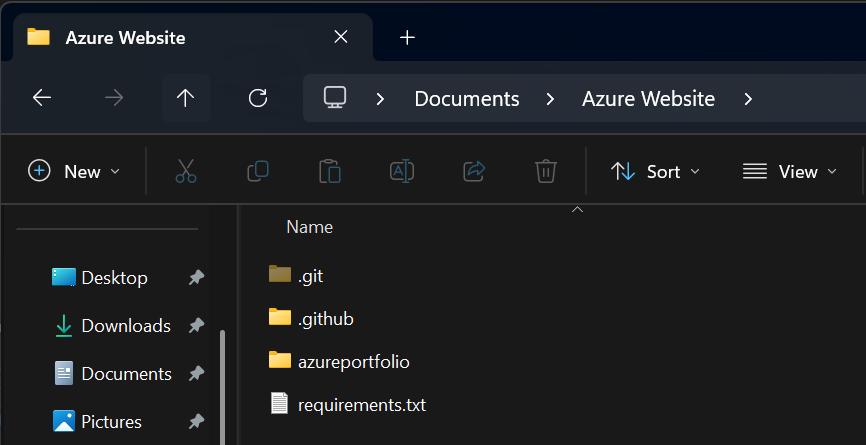
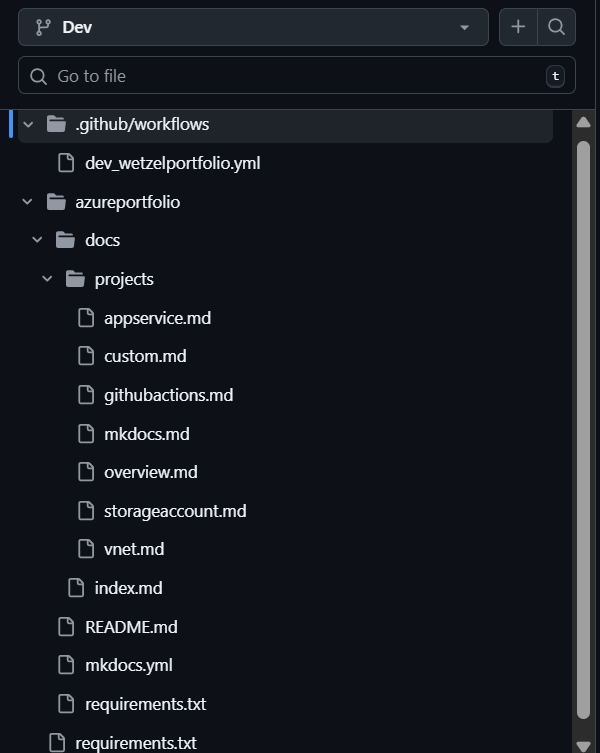
The Github repo is structured to have a Dev branch and a main branch. For now, I'm only pushing to Dev. The frontend app you're seeing at this moment is Dev. In the future, I would like main to act as a production branch, where a working copy is always to exist.
OIDC and Identity Configuration
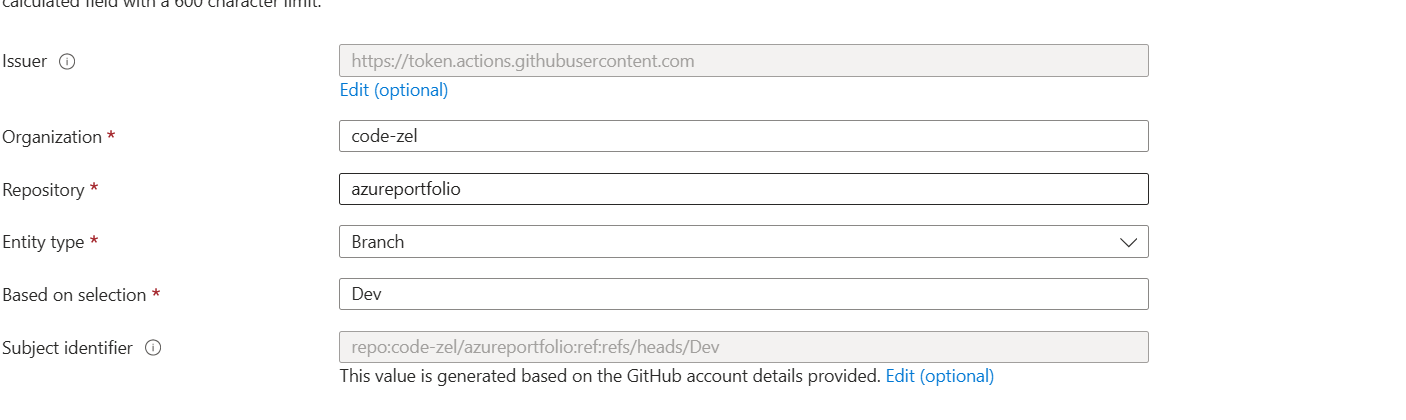
To avoid the security risks associated with long-lived passwords, OpenID Connect was implemented for authentication. This involved creating a App Registration in Azure and establishing a federated identity credential
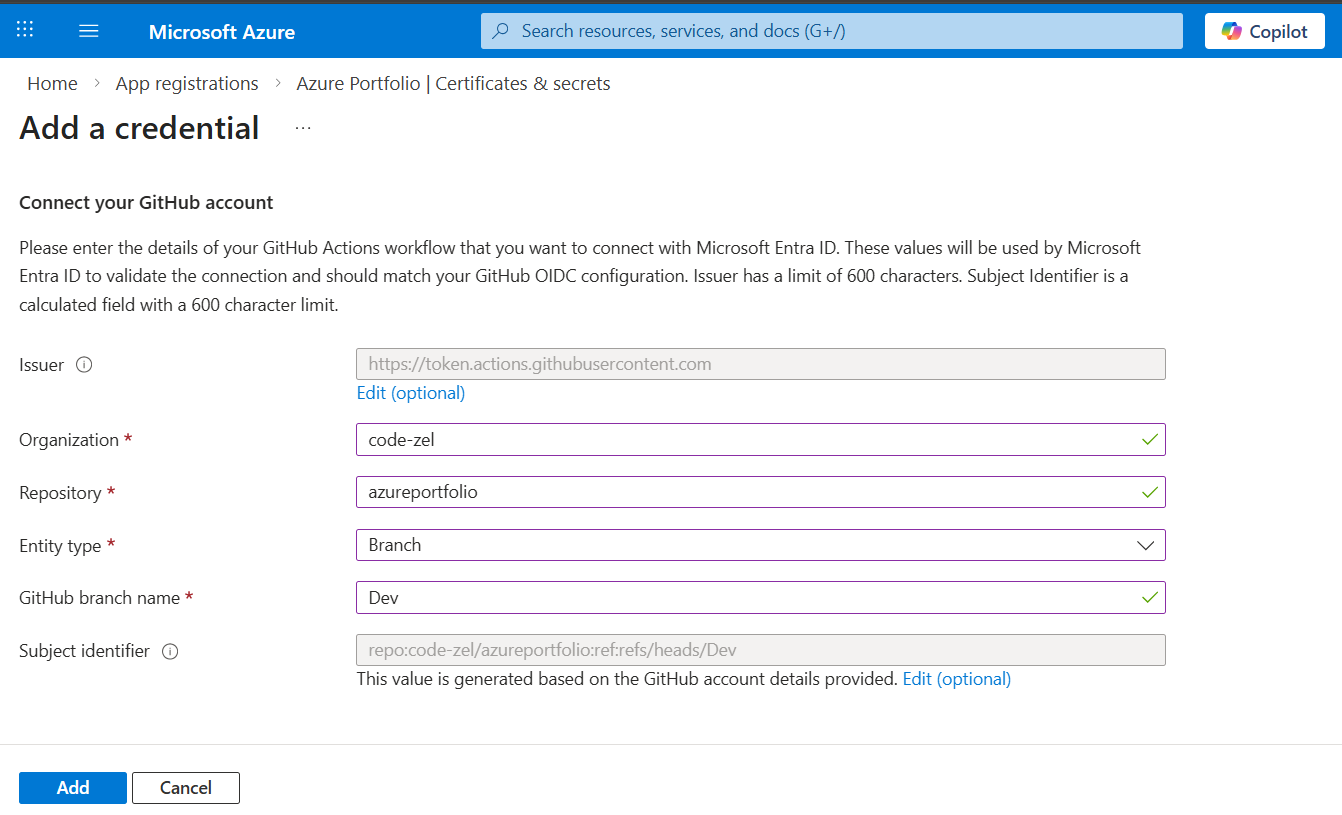
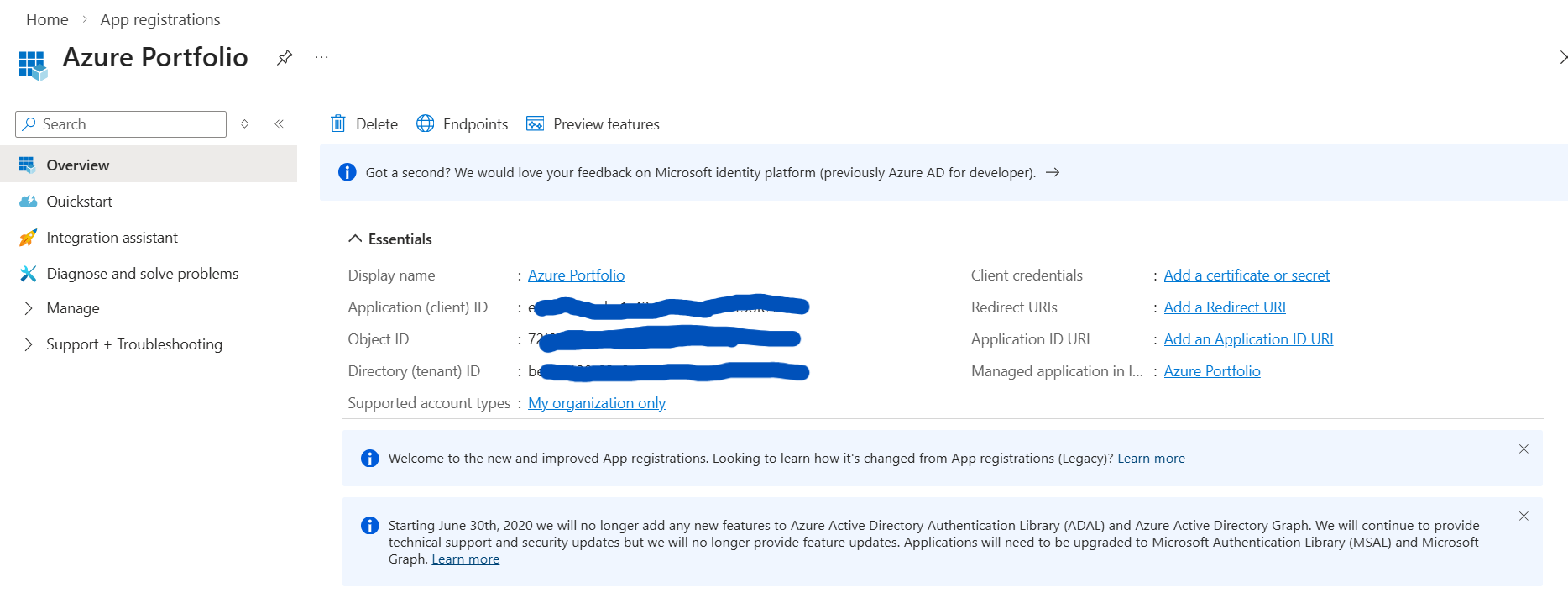
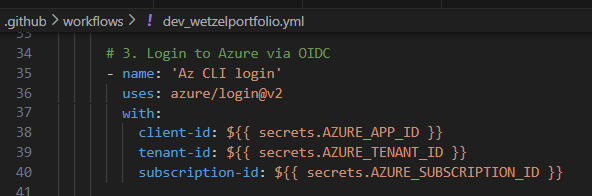
Once the App Registration is complete, we need to get the App ID, the Directory ID, and the Subscription ID (found on different page) and create secrets in our github repo that reflect the expressions made in dev_wetzelportfolio.yml
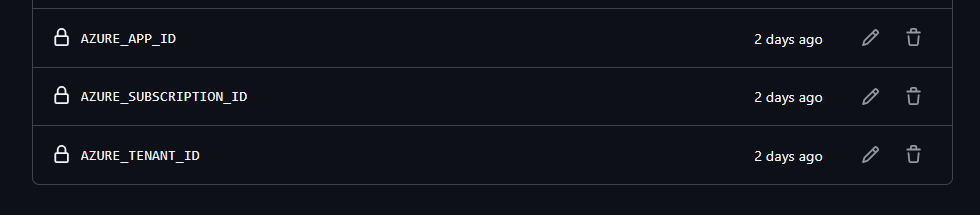
Here are the secrets as they exist in my github repo. The .yml file is pulling from these three keys to connect Github Actions
One last thing. We need to connect our github to our Deployment Center in the App Service. Super Easy.
Using YAML to orchestrate deployments/pushes
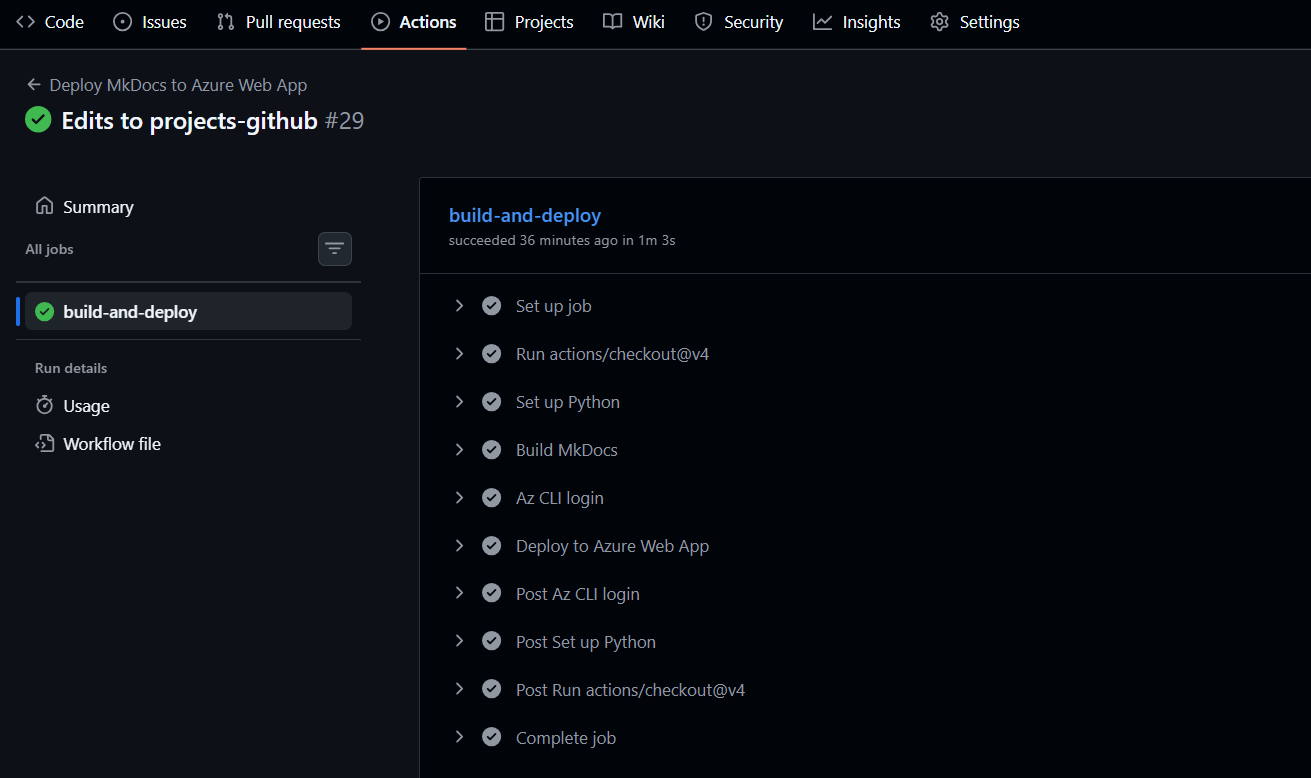
The dev_wetzelportfolio.yml achieves the following for the project:
- Sets up Python environment
- Installs dependencies (requirements.txt)
- Builds MkDocs site
- Authenticates with Azure via OIDC
- Deploys files to the site folder of the App Service (from Dev branch)
On every push to the Dev branch, this YAML is triggered.
Click to view YAML
name: Deploy MkDocs to Azure Web App

on:
  push:
    branches:
      - Dev

permissions:
  id-token: write
  contents: read

jobs:
  build-and-deploy:
    runs-on: ubuntu-latest
    defaults:
      run:
        working-directory: azureportfolio

    steps:
      - uses: actions/checkout@v4

      # 1. Set up Python 3.14 to match Azure Runtime
      - name: Set up Python
        uses: actions/setup-python@v5
        with:
          python-version: '3.14'

      # 2. Install Dependencies and Build Site
      - name: Build MkDocs
        run: |
          pip install -r requirements.txt
          mkdocs build

      # 3. Login to Azure via OIDC
      - name: 'Az CLI login'
        uses: azure/login@v2
        with:
          client-id: ${{ secrets.AZURE_APP_ID }}
          tenant-id: ${{ secrets.AZURE_TENANT_ID }}
          subscription-id: ${{ secrets.AZURE_SUBSCRIPTION_ID }}

      # 4. Deploy the "site" folder to Azure App Service
      - name: 'Deploy to Azure Web App'
        uses: azure/webapps-deploy@v3
        with:
          app-name: 'WetzelPortfolio'
          package: 'azureportfolio/site'
Github Workflow
After setting up mkdocs(using command mkdocs new.) in our project folder , C:\Users\Wetzel\Documents\Azure Website, we must also connect our local folder to our git repository.
To connect, we ensure that the VSCode terminal is working in our Azure Website folder, then run git init. At this point, github would display a window and ask you for login, but my account was already connected, so the window didn't appear. git init will create the hidden .git folder within the root of the repo. This hidden folder acts as the database structure that stores commit history and more.
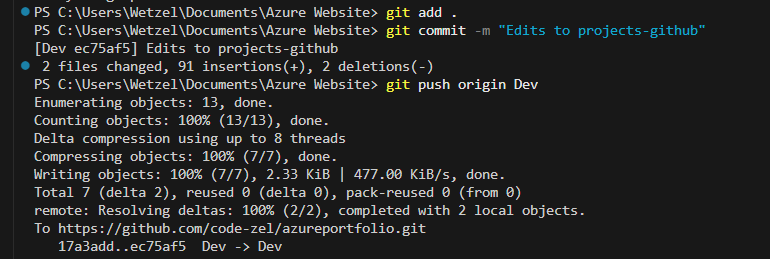
From there on, when we want to push a change to our github repo, we must do the following while the terminal is working in our Azure Website folder:
git add . - Stages every new/modified/deleted file
git commit -m "Add commit purpose here" - Creates a permanent snapshot of the project along with a title for it
git push -u origin Dev - uploads the local commits to the remote repository on GitHub. This is only supposed to run on the first push
Subsequent pushes are similar, but use git push origin Dev instead.
Example of a successful git push and the following Github actions: